Devlog Six: Group Work
- Harry Newton
- Apr 22, 2020
- 2 min read
My role within our group was the implementation of various combat systems and enemies. Utilising my work from the previous devlog, I gathered all of the files I would need into one folder and imported it into the group project.

I had to spend a fair amount of time inputting values again into various prefabs such as all 3 stages of the slimes and the player.
Getting the slimes working in the group project was one of the easier tasks in this process as they didn't rely on any other systems so just worked as intended from the start, although I did forget to bake the environment layers to allow them to walk around a few times.
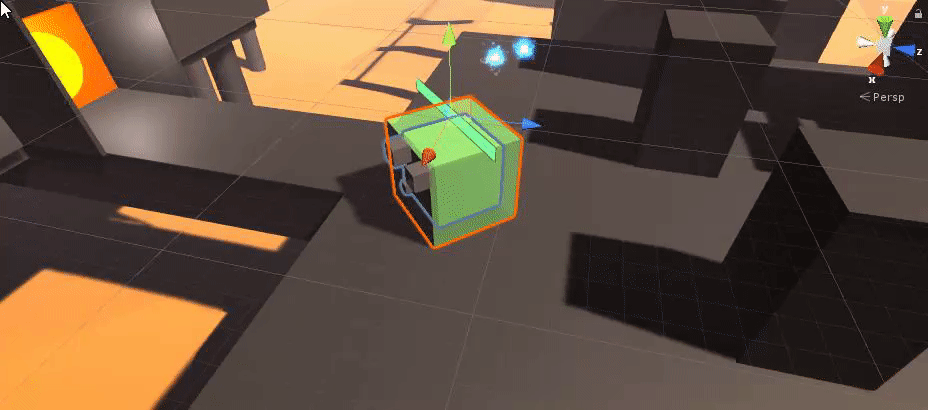
I ran into various issues however with the combat on the player, primarily my time was spent resolving conflicts between the player controller and the combat systems I had written. As the player controller being used was not the same as the one I had written for my solo project, I had to adapt several systems to this new controller by remapping various controls and changing some animations around.
One fairly complex issue I had was in adapting my respawn functionality to the new player controller. In my solo project it simply transported the player to the respawn location and reset their health, however due to the difference in player controller's, this system didn't want to work no matter how I tweaked it. This meant a lot of the respawn functionality had to be rewritten to allow for this character to be transported.
Once the issue with respawning was fixed, I still had a little bit of time left so I decided to add some post-processing to our game to improve the visuals. Although not entirely necessary, I think it gave a great deal of depth to the way the game looked, giving it that extra bit of polish.

Before Post Processing

After Post Processing
The next task I undertook was the creation of a basic menu screen. This was relatively simple to complete and consisted of creating a new scene wherein I had a canvas and some buttons. Pressing the Start Game button would take you to the first level and pressing the Exit Game button exits the game. This is all done utilising Unity's built in scene manager.

After this, my part in this group project was complete.


Comments